
Please see also the Knowledge Base which is included in Jutoh for searching via Jutoh's toolbar.
About Jutoh | Licensing and Support | Technical Issues
Licensing, Support and Privacy
 Who should use Jutoh?
Jutoh is suitable for creating a wide range of ebooks - for example, novels, self-improvement books, biographies, scientific books, poetry collections, photographic books, recipe books, and so on. Jutoh handles images and complex formatting such as tables, and both reflowable and fixed layout books are supported. You can read more about Jutoh's features, and you can try out the demo to see if it suits your needs.
What platforms are supported by Jutoh?Jutoh is cross-platform and runs on all popular desktop and laptop operating systems. If you want, you can install the Windows, Mac and Linux versions on a USB memory key and switch machines as much you like, retaining all your settings. Specifically, we support:
Jutoh does not run on Android or iOS devices.
What hardware is required by Jutoh?Hardware requirements are modest: 4GB RAM, and about 100MB of hard disk space depending on operating system.
What tools were used to develop Jutoh? Jutoh is programmed with the popular open source cross-platform GUI toolkit, wxWidgets, created in 1992 by Anthemion Software director, Julian Smart. Dialogs are edited with Anthemion's DialogBlocks. wxWidgets is being used by organisations large and small all over the world, including by Google for Google Drive. The more exotic applications include space telescope control, science at the South Pole, genetic research, Formula One racing, and the hunt for extra-terrestrial life.
How do you pronounce Jutoh?We pronounce it "Joo-toe". The name is derived from three forenames - [Ju]lian, [To]ni, [H]arriet.
Can Jutoh help make accessible books?Yes, there are various features to help make a book accessible, such as checking for sufficient text contrast and adding the required accessibility metadata (from version 3.21). We will be adding more accessibility features in preparation for the June 2025 deadline for confirming with the European Accessibility Act. Please see our accessibility resources.
How much does Jutoh cost?Please see the purchase page for pricing information. Jutoh is not subscription-based and there is no per-book cost - it's a one-off purchase and you can use it for as many books as you like.
Will upgrades be free?Upgrades and bug fixes for each major version of Jutoh will be free. You can download new versions of Jutoh as many times as you like. We will sometimes make a small upgrade charge for major new versions, usually denoted by a change to the first version number. The upgrade from version 1 to version 2 is free, but there is a small charge to upgrade to version 3, which adds creativity tools including the storyboard document type, writing tips, quotations and exercises, and the ebook Fiction: The Facts by Harriet Smart.
Jutoh 2 Plus users will be upgraded to Jutoh 3 Plus automatically. You can upgrade from Jutoh 2 ('Classic') to Jutoh 3 Plus to get the full feature set.
If you do not wish to upgrade, you can continue to download Jutoh updates for bug fixes and additional minor features, and everything will work as before. The version will appear as Jutoh Classic in the About box, and the Jutoh 3 features will be unavailable until you buy a new upgrade licence. The same Jutoh download will work for all licences - there are no separate Jutoh 2 and Jutoh 3 downloads.
You can try the new features by enabling them temporarily using the menu command Help | Try New Features.
To summarise:
Do I pay for each operating system I run Jutoh on?Each separate user must buy a separate copy, one copy each. But if you want to run Jutoh on all of Windows, Mac and Linux, for example, then you only pay once. To put it another way, you can use a single licence on any or all of your own machines, as the licence is per user and not per machine. The licence is not tied to a particular operating system.
What are the restrictions of the demo?The demo is restricted to 20 documents, generated chapters have the line "CREATED BY JUTOH" at the top, and there are occasional registration reminders.
Can I use the same registration key for Jutoh both at home and at work?Absolutely. You can use the same registered copy of Jutoh on multiple machines so long as only one copy is being used at a time.
How do I register to unlock the demo?Run Jutoh and click on the Register toolbar button. Alternatively, click on the Help menu, followed by Register Jutoh. Now find the user name and registration key that you were sent when you paid for Jutoh. Copy and paste (or type) the information into the user name and registration key fields, and press OK. (Note that any '0' characters in the registration key are zeros, and not letter 'O's.) Your copy of Jutoh should now be registered.
What do I do if Jutoh doesn't accept my registration key?Normally this is due to a typo. The most reliable method is to use copy and paste to transfer the user name and key (on Windows: select the text in the email, then Ctrl-C, then Ctrl-V in the registration dialog). If typing manually, please note that there are no letter Os in the key: only zeros. If all else fails, please email jutoh@anthemion.co.uk for further help. I can create a file for you to open in the registration dialog that will solve the problem.
The key is either in two parts - your name and a key containing dashes - or of the form USER01234,XXXXXXXX-XXXXXXXX-XXXXXXXX. If it's combined, you can either paste the full line into the user name or key field for Jutoh to separate out, or paste the user name and key part into the 'User name' and 'Key' fields separately.
It's important to enter the user name that you were sent, not your actual name if that's different. The user name and key are linked.
If you have been trying the Jutoh 2 demo for a few months, and then purchase it, you might find that the key doesn't work. Please download the latest Jutoh to fix this - older Jutoh versions don't know about the latest Jutoh 3-compatible key.
What do I do if I've lost my registration key?Email jutoh@anthemion.co.uk and we'll find your key. Please quote your order reference number, name and preferably the email address you used when ordering Jutoh.
What happens to my work if I uninstall Jutoh before upgrading?If you created new files, they won't be deleted. Your application settings will be preserved too.
How do I move Jutoh to another machine?You can just download Jutoh onto the new computer, and enter your user name and key when Jutoh runs for the first time. You can obtain this information from the registration dialog (Help | Register Jutoh) on your existing computer, or from the original email sent to you when you purchased Jutoh. Note that you can install Jutoh on as many of your own computers as you like, since licensing is per user and not per computer.
How can I get support?Please email us at jutoh@anthemion.co.uk if typing keywords into the Jutoh help search box, and reading the FAQ, don't answer your query.
Are you responsive to suggestions?Yes! Anthemion Software is a small, friendly company and we are delighted to receive feedback from our users. We strive to build the best-of-breed tools so getting back 'reports from the field' helps us to serve you better. A lot of customer suggestions make it into future versions of Jutoh.
Is there an affiliate programme?Absolutely; please see Become a Jutoh affiliate.
What is your privacy policy?At Anthemion Software, we only store enough information about our customers to be able to communicate with them for support. We do not receive any information about customers' credit cards or bank accounts, and we do not share any information with third-party companies.
No personal information is taken by or stored on our web sites, since we use the secure web sites of third-party payment services to take payment and notify us of the customer's name and their email address. You may read the privacy policies of these services (2Checkout, BlueSnap and FastSpring) when you are on their payment page, but they will take the minimum amount of information for the purposes of completing payment.
The Jutoh software works completely offline, except to check for and download updates to the software (under user control). It stores the customer's user name and Jutoh key for the purpose of activating itself. Any project file history can be cleared using the Privacy page in the Preferences dialog.
Please email us at jutoh@anthemion.co.uk for further information or to remove your information from our records.
How do I install Jutoh on Windows 8, 10 and 11?Extra steps are required for Windows 8+ as Windows is being extra careful about an application that is downloaded relatively infrequently compared with some software. Depending on how many people have already downloaded it, some of the following steps may not be required.
After you have clicked on the Windows Setup link in your web browser, and it has finished downloading, you may see a message in your browser, such as this message in Microsoft Edge: "Jutoh-3.01-x64-Setup.exe was blocked because it could harm your device."
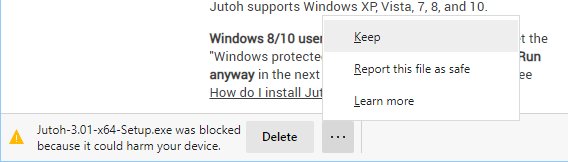
Click on the "..." menu button and choose Keep. You should now see the downloaded file within Edge:
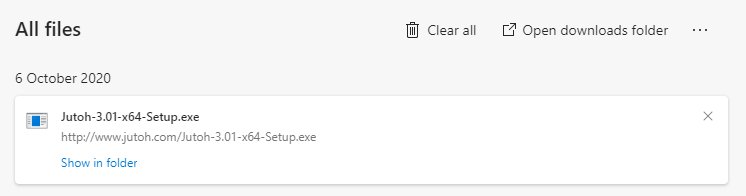
Click on the downloaded file. You may see this message from Microsoft Defender SmartScreen, saying "This app might harm your device":
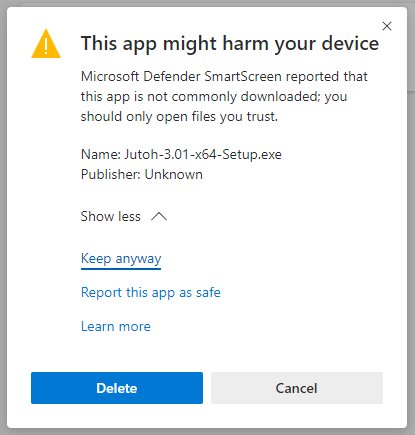
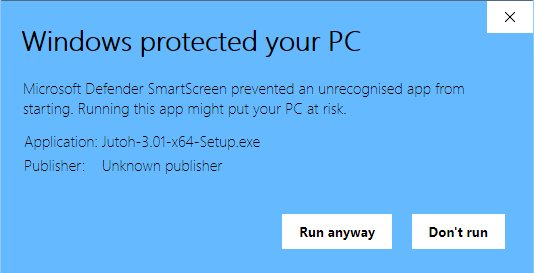
Click the Show more link, and then click on Keep anyway. Next, you will see the screen "Windows protected your PC".
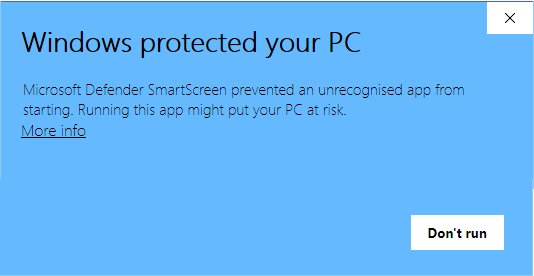
Click on the link More info, and you will see a screen with the choices Run anyway and Don't run. Click on Run anyway.
You will then get a User Account Control screen, with "Do you want to allow this app from an unknown publisher to make changes to this device?"
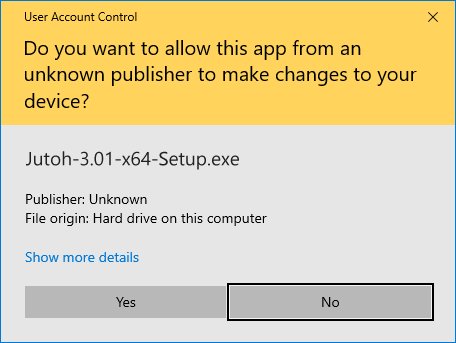
Click Yes to run the Jutoh setup program, which will guide you through the installation.
If you didn't see a Run anyway button, you can unblock the setup program another way. Go to the folder containing the download, usually your Downloads folder, and right-click over the setup program. Choose Properties, and you will see a dialog like this:

Check Unblock, and then OK. Now you should be able to double-click on the executable file to install Jutoh.
Various brands of anti-virus software may also complain about the software - not because they think it has a virus, but because they are (like Windows) risk-averse. Here are comments from users:
I use AVG for Windows as my AV software. When I install or update Jutoh it prevents me temporarily -- says Jutoh is a 'rare file' and it needs investigating. Sometimes just for a minute while it checks the file and then I can use the exe, sometimes for a half-hour as it sends the file to its database for a check for malware. Then the app will tell me all is OK and then I can install. So the same may be true for other AV software. -- Dick Ravin
My virus / safety software is BitDefender and it always gives me this message when installing Jutoh: "The application jutoh-3.00-setup.tmp attempted to change a file in a protected folder and was blocked. Protected folder: C:\Users\Rik\Documents\Jutoh 3 Samples. Keep blocking the application if you do not recognize it or did not want to edit one of your protected files right now." I just go in and tell the software that Jutoh is OK :) -- Rik Hall
If after trying to run the installer you get a spinning cursor and then nothing, try the following workaround, courtesy of Michael Gilsdorf. Right click on the setup executable, and choose the Compatibility tab. Then, place a checkmark next to Run this program in compatibility mode for, and select Windows 7 from the dropdown box. Click OK to close the dialog box. Now, install the software.
How do I solve an install problem when writing to the Documents folder on Windows?When installing on Windows, the setup may fail with messages about not being able to copy the sample files to the Documents folder. Even if you ignore these messages, Jutoh may not be able to write new projects to the Documents folder.
This is probably because 'controlled folder access' is switched on, preventing unauthorised applications from writing to the Documents folder. To fix this, follow these steps:
If for any reason Jutoh still can't write to the Documents folder, click Ignore when Jutoh setup shows error messages, and finish the setup. This will only prevent Jutoh from installing the samples, which are not essential for running Jutoh. Then, when you run Jutoh, tell it to use a different default location for new projects, by clicking Options on the toolbar followed and changing the "Documents" value to the location of an existing location on your computer that you have created, e.g. c:\Jutoh Documents.
You can also copy the samples to a different location - they are stored with the application in e.g. C:\Program Files (x86)\Jutoh\Samples, and you can copy them to e.g. c:\Jutoh Samples.
Does Jutoh run on a Chromebook?If you have a suitable Intel Chromebook, it is possible if you're prepared for a bit of fiddling or know someone who can help. For more information, see Installing Jutoh on a Chromebook.
What import formats are supported?Jutoh imports from a range of formats. You can import from Word DOCX, ODT, plain text, HTML, or an existing Epub ebook. (Note that complex CSS style definitions may not be preserved when importing from HTML or Epub.) Using an application such as OpenOffice or LibreOffice, your existing word processor files can be saved in DOCX or ODT (Open Document Format) for import into Jutoh. Tables and images will be imported.
Jutoh does not support PDF import directly, but you could try converting your document from PDF to Word using an application such as Tweak PDF Converter.
What languages are supported?Currently, most elements of the user interface are available in English, Dutch, French and German (application help files, Writing Recipes, Writing Cookies, Writing Prompts and Fiction: The Facts are only available in English). However, Jutoh can be used to create books in any left-to-right language. RTL (right-to-left) languages are not supported.
Does Jutoh support Epub 3?
Jutoh supports some Epub 3 features. You can switch Epub 3 support on by setting the Epub version configuration property to 3. The adaptations to Epub 3 are currently as follows:
Jutoh is distributed with EpubCheck 3, which means it can check both Epub 2 and Epub 3 files if you have Java installed.
Jutoh supports audio and video tags in both Epub 2 and 3. Let us know if you need other Epub 3 features not currently supported.
Can I use Dragon Dictate/Naturally Speaking with Jutoh?Yes, you can use the basic Dragon dictation functionality to insert text. However Jutoh does not support the more advanced editing commands.
If you need more control, you can open a more compatible editor, dictate into it, and paste the result into Jutoh.
How do I changes styles, for example to add indentation?
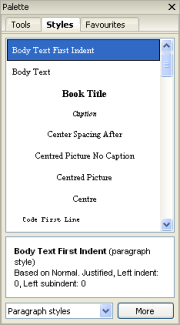 Apply styles using the formatting palette (left), which you can switch on with View | Formatting Palette or Alt+P
if not already shown. This shows the available styles in a list, and you can double-click to apply a style, or right-click to choose from handy style-related commands including Edit Style and Clear Formatting. Jutoh will also describe the current style, either the one at the cursor or the style you clicked on in the palette.
Apply styles using the formatting palette (left), which you can switch on with View | Formatting Palette or Alt+P
if not already shown. This shows the available styles in a list, and you can double-click to apply a style, or right-click to choose from handy style-related commands including Edit Style and Clear Formatting. Jutoh will also describe the current style, either the one at the cursor or the style you clicked on in the palette.
You can also apply styles using the Format | Styles menu command, and by using the context menu. You can edit, add and delete styles via the Styles page of the Project Properties dialog - click Edit on the toolbar to see this dialog. Editing the style won't apply it to the current paragraph, unless that paragraph already uses the style.
For more information, see the chapter on styles in the Jutoh book.
The OpenOffice Writer desktop icon isn't working. How do I fix it?Jutoh may add a desktop item for OpenOffice Writer that doesn't initially work, if the application isn't installed or it guesses the location wrongly. First, check your system to see if OpenOffice is installed. It's not distributed with Jutoh since it's very large. You can download it from www.openoffice.org.
Once you have OpenOffice installed, you can fix the desktop command. Right-click on the OpenOffice Writer icon on the Jutoh desktop, choose Properties, click on the Location text box, and clear it. Now click on Browse and find the OpenOffice or swriter program. On a Windows system the command might be:
"C:\Program Files\OpenOffice.org 3\program\soffice.exe" -writerOn Mac, it might be:
/Application/OpenOffice.org.app
(The .app extension must be present on Mac.) Now click on OK, and OpenOffice should launch when you double-click the shortcut.
How do I reset Jutoh?On rare occasions, for example if Jutoh starts behaving strangely, you may wish to try resetting the application back to the installation state. First try removing the application preferences, and then if necessary the folder containing the application data, such as report templates, sample files, toolbar customization and other data that may be saved by Jutoh between sessions. Note that by removing the application data you will lose some of the customizations you have made, though not your project data.
How you achieve reset Jutoh differs according to operating system. First, quit Jutoh.
On Microsoft Windows, to reset the application preferences, you need to delete the relevant registry entries.
This deletes the preferences. You can optionally delete the application data that Jutoh stores, by navigating to \Users\<your user name>\AppData\Roaming and deleting the folder Jutoh 2 for Jutoh 2, or Jutoh 3 for Jutoh 3. Note that the AppData folder may be hidden unless you have enabled Show hidden files and folders in the Folder Options dialog (available from Tools | Folder Options in Windows Explorer).
On Linux, you need to remove the file ~/.config/jutoh2/Jutoh2 or ~/.config/jutoh3/Jutoh3, and optionally, the application data folder ~/.config/jutoh2 or ~/.config/jutoh3.
On Mac OS X, you need to remove the file /Users/<your user name>/Library/Preferences/Jutoh2 Preferences or Jutoh3 Preferences. Using Finder, you can click on the Home icon and then navigate to Library/Preferences, from where you can delete the Jutoh2 Preferences or Jutoh3 Preferences file. You can optionally delete the folder /Users/<your user name>/Library/Application Support/Jutoh 3 or Jutoh 3.
How do I fix keyboard input problems in macOS Tahoe?There have been a couple of reports of keyboard input not being accepted in the text editor in macOS Tahoe, and keyboard shortcuts being activated instead.
An apparent solution is to reset Jutoh, as above. We will try to ascertain why this works.
Is Jutoh compatible with Dropbox and Google Drive?There have been reports of project file corruption when using Dropbox and Google Drive. Synchronisation services do not seem to be able to cope with the SQLite format used by Jutoh for project files.
There is a setting to allow projects to be copied to the system temporary folder, and then copied back when the project is closed. In Preferences/Projects, check 'Edit in temporary folder' and specify a pattern that will match your sync folders. If this option is enabled, whenever you open a project in a matching folder, Jutoh will automatically copy the project to a temporary file for editing, and copy it back to the original folder when the project has been closed.
What is the PortableApps.com version of Jutoh?PortableApps.com provides a way to install Windows applications on a USB drive to allow them to be run on any Windows machine, saving settings and data to the USB drive. Jutoh is available in a .paf.exe installer that is compatible with PortableApps.com and allows easy integration with your existing PortableApps.com applications. To use it, download the .paf.exe installer to a temporary location on your desktop hard drive and then from the PortableApps.com Options menu, choose 'Install a New App' and select the .paf.exe file. Follow the instructions, and the Jutoh icon will appear on the PortableApps.com menu.
Note that this method is in addition to the portability built into Jutoh. Normally you install Jutoh to a USB drive by invoking the Mobile Preferences dialog from the View menu, and then clicking on 'Install Jutoh on External Drive' (see the appropriate FAQ. This installs the application using locations and conventions that differ from those employed by PortableApps.com, and allows you to use multiple platforms (Windows, Linux and Mac OS X). But if you only use Windows, the PortableApps.com method may be preferable since it comes with a set of free applications and can be used to launch Jutoh as well.
The regular and PortableApps.com installers both contain the same version of Jutoh, but with a different directory layout. The PortableApps.com version includes a startup.cnf file that tells Jutoh where to look for its data, and that an external drive is being used.
Do I need a 64-bit version?The performance difference between the 32 and 64 bit variants on Windows is neglible. If you have extremely large projects, then the 64-bit version will cope with them since it can address more of your computer's available RAM. You can run the 32-bit version of Jutoh on both 32-bit and 64-bit versions of Windows. Since fewer and fewer people run 32-bit Windows, we may remove 32-bit support at some point.
On Linux, it's best to choose the version that matches your version of Linux. Most versions of Linux nowadays are 64-bit since older PCs that don't support 64-bit Linux are increasingly rare.
On Mac, there is also a 64-bit (Cocoa) version that works on Mac OS X 10.9.5 and above, and is required for macOS 10.15 (Catalina) and above. There is a 32-bit (Carbon) version of Jutoh that runs on macOS 10.14 and below, including old PowerPC Macs; this won't be provided in future, but let us know if you need it.
Can I store my Jutoh data files on a USB drive?Yes, you can store your own data files, and Jutoh settings, on an external drive. You can do this without any change to Jutoh's preferences but it's easier if you configure the application to look on an external drive and if appropriate, store settings on this drive.
To do this, go to the View menu and select Mobile Preferences. On this dialog, check Store your data on the external drive and (recommended), Store all settings on an external drive. Click OK and restart the application. Jutoh will now prompt you to enter the name of the external drive, for data and settings. It's useful to store the settings on the drive so that it can remember what files to load automatically, regardless of what machine you're currently using, but if you sometimes wish to use Jutoh without the external drive connected, then don't check this option.
Note that until you explicitly open files on the external drive and restart the application, Jutoh will probably have loaded the last files from the computer's hard drive. So you need to be careful that you are really editing the files you think you are editing. It's handy to type Alt+Enter to see the location of the current file.
This FAQ has dealt with storing only data and/or settings on the external drive. See the next FAQ for how to run the program itself from the external drive, in addition to settings and data files.
How do I run Jutoh from a USB drive?You can install Jutoh to a USB drive by first installing it on your computer as normal. Then, go to the View menu and select Mobile Preferences. On this dialog, click on Install Jutoh on External Drive. This installs the application to the USB drive so that you can switch machines and Jutoh will use settings and data stored on the USB drive.
If you're using different operating systems (for example two or more of Windows, Linux and Mac OS X), do this installation on each operating system that you are using. Your shared settings and documents will be used regardless of operating system.
If you will only be using Windows, consider using the PortableApps.com installer as mentioned in the previous FAQ.
On Linux, you may find that you don't have execute permission on the external drive, particularly if the drive is formatted with a Windows file system such as FAT32. In this case, you need to mount the drive with different options, and you can do that by editing the file /etc/fstab as root. You should add a line that tells the system to use special options. Here's an example:
/dev/sdb1 /media/usbdisk vfat rw,shortname=mixed,uid=1000,gid=1000,user,auto,exec 0 0
To find out the device name and mount point (the first two entries in this file), insert your drive and when automounted, type mount in a terminal window. You should see an entry for the external drive. The exec option causes all files on the drive to be seen as executable, and auto causes the drive to be mounted automatically when the device is inserted.
It's worth remembering that USB drives can easily be lost, and data corrupted more easily, so remember to back up frequently to a hard drive or other external drive. Also, use the 'Safely Remove Hardware' icon or equivalent operating system functionality before removing any external drive.
For more details, please see the topic Using Jutoh with an external drive, under Topics/Miscellaneous topics in the manual. It explains how you can configure Jutoh to run from your computer's regular hard drive but take settings from the USB drive, as an alternative to complete installation on the USB drive.
How can I synchronize files between multiple computers?Jutoh doesn't directly support synchronization of files, but you can use a USB drive as above, or you could use an internet backup service with synchronization, for example:
How do I install Kindlegen and Kindle Previewer?As of August 2020, Amazon is no longer making a separate distribution of Kindlegen available for download. Instead, Jutoh can use the Kindlegen that comes with Kindle Previewer 3. Unfortunately, it also means that Linux users are not supported: but you can use Kindle-optimized Epub files instead, and they can be uploaded to KDP instead of .mobi files.
Jutoh will help you configure Kindlegen from the Setup Wizard and Preferences/Helpers page. On Windows, Jutoh can install and configure Kindle Previewer from the Setup Wizard or Preferences/Helpers page. It's best to install Kindle Previewer first, and then when configuring Kindlegen, tell Jutoh to use the Kindle Previewer location.
If you have installed Kindle Previewer 3 before installing and running Jutoh for the first time, Jutoh should silently configure itself for Kindle Previewer and Kindlegen when the Setup Wizard is run, and you won't see the configuration options in the Setup Wizard.
For details, Windows users can see Installing Kindlegen and Kindle Previewer. Users on other platforms can refer to the Configuring Jutoh chapter in the Jutoh book.
Why are .mobi files larger than Epub files?Mobipocket files generated by Kindlegen (as opposed to Calibre) also incorporate the original source files, so that Amazon has the option to later recompile the ebook with newer software. However, the customer is likely to be sent a smaller file from the Kindle store.
Note also that Amazon recommends Kindlegen for the creation of Mobipocket (Kindle) files. Using an unapproved Kindle file compiler, such as Calibre, may produce poor results or cause ebooks to be rejected from the Kindle store.
Does Jutoh run on 64-bit Windows Vista and Windows 7/8?Yes; although Jutoh is provided as a 32-bit Windows executable, it runs fine on 64-bit Vista and Windows 7 and 8.
Does Jutoh run on both Intel and PowerPC Macs?Jutoh for Mac OS X runs on both Intel and PowerPC machines. However, we will be withdrawing support for PowerPC in the near future; older distributions will still be available and we can build newer versions for PowerPC on request.
On Mac OS X, why does kindlegen fail with "cannot create the temp file"?You probably didn't install Jutoh properly - you may still be running it from the read-only disk image that you got after you downloaded the .dmg file and opened it. You need to drag the Jutoh application to a suitable folder, such as /Applications, and then when you run Jutoh again kindlegen will be able to create a temporary file. If Jutoh is already installed correctly then you need to check that the kindlegen application is placed directly in /Applications since users report that it won't run correctly unless in this folder.
On Mac OS X, I can't save to certain filenames. What's the problem?You may have accented characters in your filename; try choosing a name with no accents.
On Mac OS X, how can I improve small text display?If you see badly spaced text for small fonts, you can switch on antialiasing (smoothing) for these fonts. Go to the Mac OS X System Preferences, click on Appearance, and in the item Turn off text smoothing for font sizes ... and smaller, select 8. Now fonts at 9 point and above will use antialiasing which vastly improves spacing, and gives dialogs a more consistent look too.
How do I install Jutoh on Linux?Jutoh supports three distribution methods for Linux:
Each of these methods will install suitable desktop entries and MIME types, adding a menu entry to the KDE or GNOME menu in the Office or Word Processor group. Jutoh will also be available by typing jutoh in a terminal window. The application is normally installed to /usr/share/jutoh, and the 'jutoh' startup script to /usr/bin.
Debian packages
To install a .deb, you may be able to simply double-click it in the file manager. If this doesn't work, you can use the dpkg command-line tool. Type something like the following in a terminal window:
sudo dpkg -i jutoh_1.00-1_i386.deb
To remove the package, use:
sudo dpkg -r jutoh
RPM packages
To install an RPM package, you may be able to simply double-click it in the file manager. If this doesn't work, you can use the rpm command-line tool. Type something like the following in a terminal window:
sudo rpm -i jutoh-1.00-1.i386.rpm
To upgrade the package (if an existing one is already installed), use -U instead of -i.
To remove the package, use:
sudo rpm -e jutoh
Tarballs
The tarball method is the only one currently supported on FreeBSD. With this method, you run a script in a terminal and you will be prompted to install either system-wide or locally. If installing system-wide, you may wish to login as super user (type su) or run the script with sudo, for example sudo ./installjutoh.
First, unarchive Jutoh-x.yz.tar.gz to a suitable location in your filesystem. This will create two files, JutohData.tar.gz and installjutoh. Run installjutoh and follow the instructions: it will install Jutoh in one directory, and a script 'jutoh' in another, so you can invoke Jutoh without having to set the JUTOHDIR environment variable. The script will install the appropriate MIME types and desktop entries, and if installed locally, will also add a Jutoh icon to your desktop.
With the tarball method, you can uninstall by running the uninstalljutoh-x.yz script generated by the installation process.
Opening project files
If you try to open a Jutoh project file outside of Jutoh, from a file manager, you may get an error message:
Could not display MyFile.jutoh
There is no application installed for SQLite3 database files.
Do you want to search for an application to open this file?
You need to click No to dismiss this dialog.
You can still open the projects from within Jutoh. The Welcome window on the Jutoh Desktop provides a quick way to open recently-edited files.
To fix it, bring up a terminal window and type this:
sudo update-mime-database /usr/share/mime
If you now press F5 in the file manager window to refresh it, you should see the icons change, and you can now double-click the file to open it in Jutoh.
If a default application is still not associated with the Jutoh Project type, type this in a terminal:
jutoh finishinstall
which (from Jutoh 1.71) makes Jutoh the default application for the Jutoh Project type by executing the command:
xdg-mime default jutoh.desktop application/x-jutohproject
After updating the mime database, you may still be getting the error:
Could not display "MyFile.jutoh"
There is no application installed for Jutoh Project Files.
The association between the Jutoh project mime type and the Jutoh program may have been broken.
On Gnome, you can fix it as follows:
On KDE, it's a similar procedure, using Open With on the context menu.
You should now be able to double-click on Jutoh project files to open them with Jutoh.
How do I install Jutoh on Fedora?You can install Jutoh on Fedora using the RPM. Run jutoh3 from a terminal window to check for reported missing libraries. It's possible (although currently unlikely) that you may need to install the correct version of libpng, for example.
How do I install Jutoh on Ubuntu 16.10+?Ubuntu 17.04 and above have a bug whereby the Ubuntu Install button doesn't work when simply opening the Jutoh .deb file from the web page. Instead, save it to a file, and in a terminal window change directory (cd) to the appropriate location (such as Downloads) and then type this:
sudo dpkg -i jutoh3_3.02-ubuntu-1_amd64.deb
substituting the appropriate file name (hint: use the tab key to autocomplete the file name after typing the first few characters).
Run jutoh3 from a terminal window to check that there are no missing libraries. If the unlikely event that there are (libpng is a particular pest), you will need to install them using the package manager or manually from a .deb file.
How do I install Jutoh on a Pinebook?The Pinebook is an ultra-cheap, 64-bit ARM based Open Source notebook costing less than a hundred dollars.
You can run Jutoh on a Pinebook, using the Jutoh for Raspberry Pi download. However, this is a 32-bit build, and the Pinebook runs 64-bit versions of Linux.
The following commands install the 32-bit libraries needed to support Jutoh on a Pinebook running Ubuntu 16.04 64-bit:
# Add the next line to /etc/apt/sources.list:
deb [arch=armel,armhf] http://ports.ubuntu.com/ubuntu-ports xenial main universe
# Issue these commands
sudo dpkg --add-architecture armhf # add 32-bit support to the packaging manager
sudo apt-get update # forces package system to become aware of 32-bit repository
sudo apt-get install libc6:armhf libncurses5:armhf libstdc++6:armhf # Libraries Jutoh needs
sudo gdebi jutoh2_2.64-1_armhf.deb # install Jutoh
(Thanks to John Blommers for this information.)
How do I work around a locale problem on Arch Linux?On German Arch Linux installations, Jutoh can crash when starting. This is caused by a locale bug where systemd resets the user's locale so that only this is left:
LANG=de_DE.utf8
LC_ALL=
while Jutoh tries to read LC_ALL instead. Hence LC_ALL has to be passed in the command. The solution is to run Jutoh with these commands:
% cd /opt/jutoh2
% LC_ALL=de_DE.UTF8 ./jutoh
Jutoh still gives warning about not being able to initialise locale for en_GB before working OK for German. (Thanks to Bernd Pol.)
What are the workarounds for Jutoh not running correctly on Linux?If you get a message about libpng1.6 not being found, install it via your package manager or download it from the web and try again.
If Jutoh doesn't install on Ubuntu 17.04, see the previous topic for how to manually install it.
If Jutoh crashes with a BadAlloc error on Ubuntu 17.10+, you need to ensure you are running the X.org windowing system and not Wayland. When logging in, click on the settings icon and choose X.org.
If there is a crash on startup or buttons and other graphical elements are not displaying correctly, there may be a conflict with a specific theme. Please change the theme or just the icon set.
How can I improve printing under Ubuntu 9.10 and above?Some Linux distributions don't install a library that Jutoh needs, so please go to the Synaptic Package Manager and install the libgnomeprintui2.2-0 package. Without this, only a fall-back PostScript printer will be used, and it will not be possible to select alternate printers.
On Windows, why does Jutoh not always find Adobe Acrobat Reader?Sometimes there is a problem with the PDF file association, resulting in advice from Jutoh, despite the fact that Reader is installed on your system and PDF files can be launched from Explorer. This is caused by the absence of certain registry keys and can usually be fixed by re-installing Acrobat Reader.
If the problem persists, you can still read the PDF files by locating them on your system either from within Explorer or from the Reader file dialog.
Why do Jutoh and Windows explorer sometimes use different shortcuts?When you choose a document in a shortcut and launch it, sometimes the application that opens the document is not the one you expected (or the one used by Windows Explorer). This is because you have overridden the standard associations with different associations in Explorer - but this is not reflected in the basic association that Jutoh uses.
You can fix this by making the association more pervasive. In Explorer (while browsing a drive, for example), go to the Tools menu and select Folder Options. Click on the File Types tab and scroll down to the extension you're interested in. Click on the extension. If there is button Restore, click it, and it will change to Advanced. Now click on Advanced and you will be able to select the application you want to associate with the extension. Click on open in the list of actions, and then click on Edit. Enter the program path in the second text field. If you browse for it, don't forget to add %1 to the end, to represent the data file to be opened. Press OK to confirm the changes, and then OK again to confirm the association changes.
You may wish to make a note of the original settings in case you want to restore them.
Why does HTML/Epub import not preserve all my styles?Jutoh only parses a subset of CSS (the style information provided with HTML and Epub), so if the original file has complex formatting, you may need to edit the styles and/or text after import. It is recommended that you import from DOCX or ODT if possible.
Why does ODT import ignore some images?When some images are pasted into OpenDocument files (instead of inserting from a file), or the file is converted from another format, OpenOffice saves the images in an obscure and little-used format (SVM, or StarView Metafile). Unfortunately Jutoh (and all image conversion applications that I know of) cannot convert this file, and so there will be a warning message during import. The workaround is to paste the images into Jutoh after import. Also you may have greater success if you insert the images into OpenDocument from files instead pasting from the clipboard. Another alternative is to use DOCX as your import format, although pasted metafile images in a DOCX document will only be imported when Jutoh is running on Microsoft Windows.
Does Jutoh support encryption/DRM?Jutoh does not add any encryption for Digital Rights Management. By its nature, DRM has to be integrated with the distribution and sale of a book and therefore must be performed by the publishing system, for example the Amazon Kindle publishing site, Apple Books via iTunes, or Smashwords. None of these book submission systems can take an encrypted book from the user, so encryption in Jutoh would be of little use. Encryption should only be a concern if you intend to distribute the book yourself. In that case, you can use a service such as www.e-junkie.com or www.payloadz.com that can serve up a link to the ebook file after payment, from its own servers, so that the book is not freely available.
Whether a book is protected from clipboard copying is down to the reader software, there's nothing in the generated ebook files that can determine this.
In general I advise authors to stop worrying about encryption/DRM and simply add a request in their book for the reader to not distribute the book. This will discourage a good proportion of people from breaking the law. But a little piracy is good for publicity anyway. Note also that most readers hate DRM since it prevents them from reading the book that they bought on different readers. So you can make a lack of DRM into a selling point.
Does Jutoh support justification?Yes; it just doesn't show up in the Jutoh editor. You can set the alignment to Justified in the properties for a named paragraph style, via the Project Properties dialog (click Edit on the toolbar). Then apply this style to one or more paragraphs. It won't appear justified within Jutoh but it will appear justified in ebooks where supported (not all readers support justification).
How can I improve formatting after importing from DOCX or ODT?If you imported from a DOCX or ODT file and you need to make improvements to formatting spacing, indentation and so on, make sure you have applied consistent named styles throughout. If you have used ad-hoc formatting in your original file instead of a consistent set of named styles, then this poor formatting will also be imported. You can tell if you have used ad-hoc formatting by clicking on a paragraph and observing if the style in the toolbar shows a long name containing "+" symbols. Instead, decide what styles you need, go into the Project Properties, click on the Styles page, and edit or create styles that reflect the formatting you need. Apply these styles to the paragraphs in your document. Then, if you need to make changes to the whole document, you can edit the style definitions and not every single relevant paragraph in your entire book. It may seem a hassle to set this up, but it will save you aggravation and time in the long run.
Note that you can save time applying styles to your document by assigning shortcuts to named styles. Press Ctrl+. to start defining some new shortcuts.
It's worth remembering that the Document Cleanup dialog available from the Book menu can help clean up your project, for example removing colour formatting, extraneous spaces, blank lines and more.
What do I do if Jutoh complains about missing styles?Jutoh will tell you during book compilation if you have paragraphs or objects that use styles that are not in your style sheet. You might have deleted the original styles from your style sheet, for example, or you may have copied and pasted styles using an earlier version of Jutoh that didn't copy the styles. If named styles are missing, you can choose another style from the drop-down style list in the editor, or you can recreate the style in the style sheet, in Project Properties. If automatic styles are missing, you can normally trigger their recreation by reapplying the styles either to the existing content, or to some dummy content that you subsequently delete.
Can I edit the HTML and CSS directly?The short answer is 'kind of'. Jutoh will never support direct editing of all the generated HTML and CSS, except via a third-party application such as Sigil. This is because it would be impossible for Jutoh to reconcile your edits with Jutoh's internal representation; in other words, there is a one-way conversion to the target format, and there is no possibility of conversion from the target to the original project. If there was, there would probably be no need for you to edit the HTML in the first place, since you would have full control within Jutoh. And if Jutoh allowed you to make arbitrary edits to the target format, they would be overwritten the next time you hit the Compile button.
However, there are two features in Jutoh that can let you customise HTML.
How can I create a Greek Epub?You can download the free Gentium font, add it as a font document to your Jutoh project, and then follow the instructions in the Jutoh manual or book to embed the font in your ebook.
How do I migrate from Jutoh 2 to Jutoh 3?Jutoh 3 supports additional features over and above Jutoh 2; project files are interchangeable between major versions. The user interface has been rationalised a little, in particular the menu structure: notably, there is a new Insert menu, and some formatting commands previously on the Book menu are now under Format | Book. However, the look and feel is largely the same, so you should immediately feel at home in Jutoh 3.
Customers who bought Jutoh 2 after February 10th 2020 will already have a key compatible with Jutoh 3. All Jutoh 2 Plus users will be automatically upgraded to Jutoh 3 Plus. Jutoh 3 will read the old key, and you can also find it via Help | Register Jutoh. If you bought Jutoh earlier, but after September 2019, please contact us for a new key. Otherwise, you can purchase an upgrade here.
Even if you don't purchase a Jutoh 3 upgrade, as a Jutoh 2 user you will still be able to use all Jutoh 2 features by downloading the latest Jutoh 3, and even some new features and user interface improvements. You will see your version labelled 'Jutoh Classic' in the About box. We recommend that you use the Jutoh 3 download since it will have updates and bug fixes.
You can install Jutoh 3 on your computer without first installing Jutoh 2, so long as you use a different installation folder and (on Windows) program group. Jutoh 2 and Jutoh 3 use different locations for their settings and sample files, although most settings - such as the user spelling dictionary, find and replace presets, highlighting options, and the global clips library - will be copied across from Jutoh 2 to Jutoh 3.
Does Jutoh work on HiDPI (retina) displays?Windows
The Windows version of Jutoh is now Hi-DPI aware, meaning that dialogs, toolbars and other UI elements adapt to the resolution and DPI setting of the display. This allows Jutoh to work well on modern laptops and other PCs that have higher than the standard 1366x768px resolution.
You shouldn't have to adjust any settings, but you can adjust how toolbar button and icon sizes are chosen via the advanced setting Scale bitmaps. For example, you can choose Smaller to have Jutoh choose smaller icons when the exact size is not available.
Jutoh does not currently support multiple monitors at different scaling; also, Jutoh must be restarted if the display resolution changes.
Mac
On Mac, if you use the 64-bit Cocoa version of Jutoh on a retina display, text and most graphics will be sharp.
If for any reason there are problems with the retina display adaptation, you can switch this feature off using the advanced setting Retina display support.
If you have multiple displays active simultaneously, and the displays have different scaling (for example, a retina external monitor and a non-retina internal display), you may find that dragging a window from one to the other results in fuzzy toolbars and other graphics. To fix this, you can tell Jutoh to use double-size bitmaps on any display, retina or otherwise. To do this, set Retina display support to Always and restart Jutoh. On non-retina displays, toolbars will be slightly less sharp due to the operating system having to scale double-size bitmaps, but the overall clarity will be much better across displays.
Linux
On Linux, Jutoh currently chooses a suitable scaling factor based on the current text scaling setting in the windowing environment.
Since Jutoh 2 is currently a GTK+2 application, and GTK+2 does not have full support for HiDPI displays, most but not all aspects of the user interface will be scaled. All Jutoh-specific buttons and other graphics will be scaled, but file and alert dialogs may show small icons. However, since text buttons will be displayed at the correct size, the dialogs will still be usable.
The setting Custom display scale in Preferences/Advanced is set to (auto) by default, to estimate a suitable scaling factor, but you can set a specific scaling factor yourself if you wish.
If you start Jutoh on one display, and move windows to another display with different scaling, this may result in inappropriate user interface sizing. So in this case, it is better to keep Jutoh to a single display, or set the scaling to the same value on each display.
Copyright © Anthemion Software, 2024